
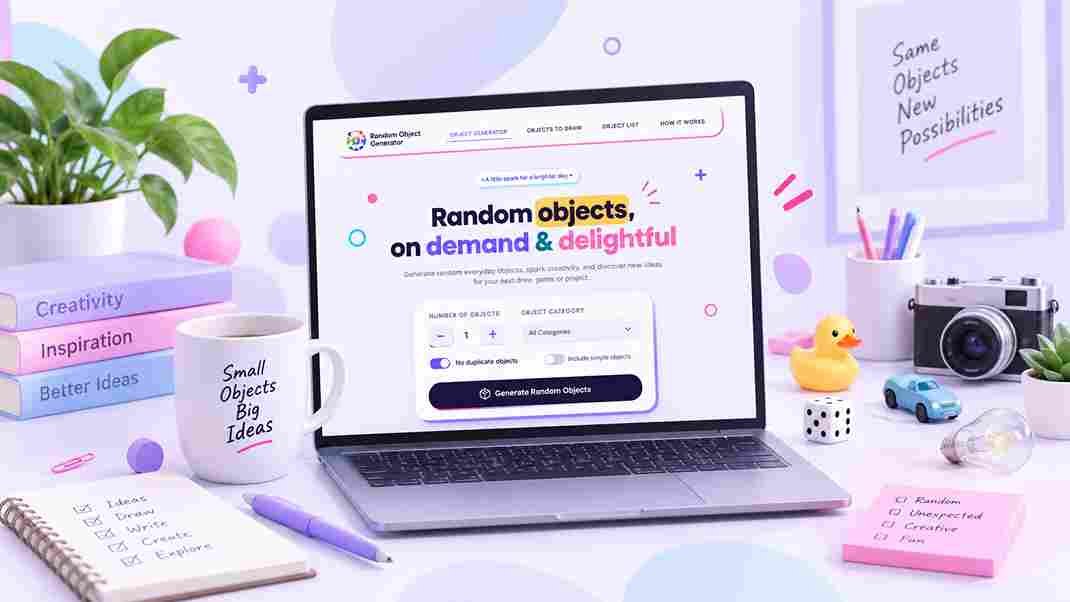
How to Use a Random Object Generator
Ever stared at a blank page, a blank canvas, or a group of restless kids waiting for you to start game night, and just… blanked? That’s usually the moment people discover random object generators. They’re small, unassuming tools, but they solve a surprisingly common problem: needing something to react to when your own imagination has gone quiet.
If you’ve landed on randomobjectgenerator.dev and you’re not quite sure where to click first, this guide walks through exactly how the tool works, what you can do with it, and a few tricks that make the results more useful depending on what you’re actually trying to accomplish.
What Is a Random Object Generator, Really?
Strip away the name and it’s a simple idea: a curated library of everyday, tangible things: a teapot, a screwdriver, a globe, a coffee mug and a button that picks one (or several) at random.That narrow focus is actually the point. When a tool only deals in concrete, recognizable items, the results are immediately useful. You can draw them, describe them, name them in another language, or build a scene around them without having to interpret anything first.
A Few Tips for Better Results
- If a batch feels too random, narrow it to one category rather than fighting the “All objects” setting
- Turn pictures off when you want the challenge of interpreting an object from its name alone, it’s a different kind of exercise
- Reroll individual cards instead of the whole set when only one or two results feel unusable
- Save anything genuinely good the moment you see it; browser-based storage means it won’t survive a cleared cache
- For group activities, generating a slightly larger batch than you need gives you backups if a couple of items don’t fit the setting
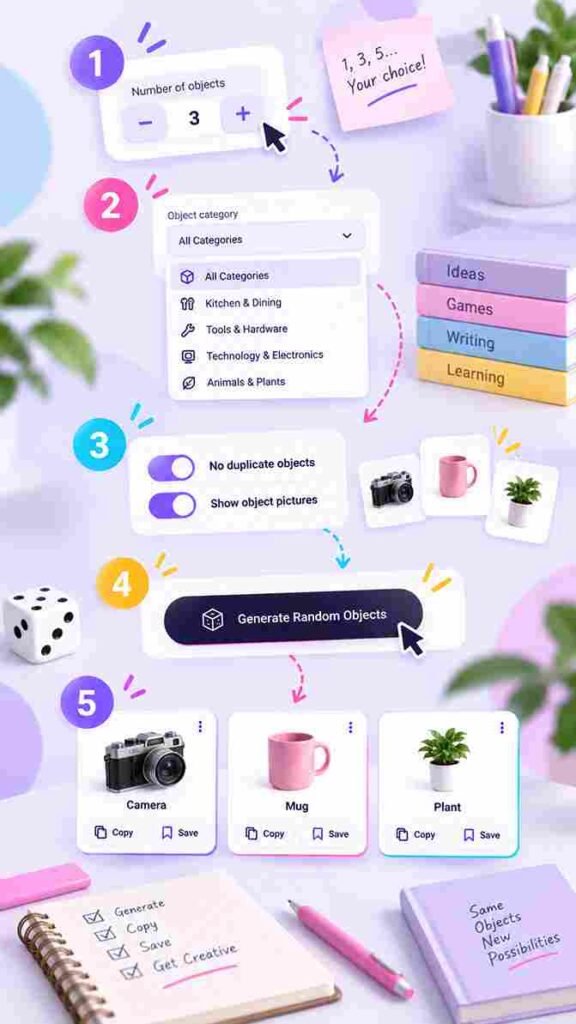
Step 2: Pick a category (or don't)
You’ll see a dropdown with a long list of categories Leaving it on “All objects” gives you the widest possible surprise.
Step 3: Adjust the extras
A couple of toggles sit just below the category picker:
- No duplicate objects
- Show object pictures
Step 4: Generate
Hit the button and your objects appear as cards, instantly there’s no loading screen since everything runs in your browser.
Step 5: Copy or save what you want to keep
Each object can be copied individually, or you can copy the whole list in one go. There’s also a save option that keeps favorites stored locally in your browser, so you can come back to them later without creating an account.
Ready to rummage?
Spin up a batch of random objects right now — no sign-up, no waiting.
The Different Ways People Actually Use It
The generator was built with a handful of specific use cases in mind, but people tend to stretch it further than that once they start playing around.
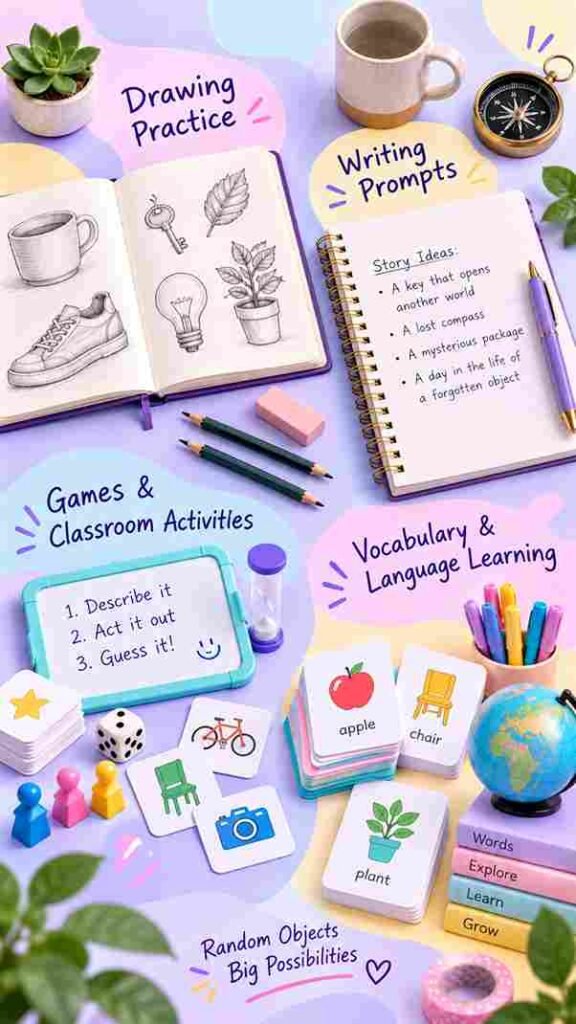
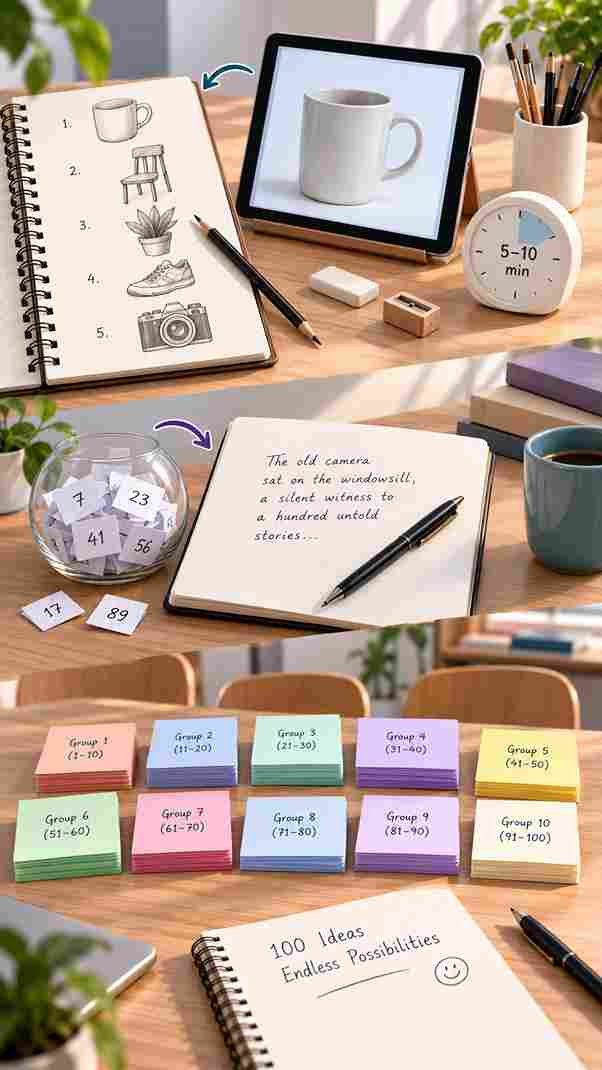
Drawing practice
Artists and students use it to break out of drawing the same three things over and over. Turn pictures on if you want a reference to work from, or off if you’d rather interpret the object name yourself and see what your imagination does with it.
Writing prompts
Dropping a random, ordinary object into a scene is a classic way to jump-start a story or poem. A character finds a compass in a drawer, a tape measure shows up in a mystery, sometimes the strangeness of an object appearing out of nowhere is exactly what a stalled draft needs.
Games and classroom activities
Charades, Pictionary, scavenger hunts, “guess the object” anything that needs a steady supply of concrete nouns benefits from a generator instead of someone having to think up items on the spot.
Matching Categories to What You're Trying to Do
Not every category suits every activity equally well. Here’s a rough guide if you’re not sure where to start.
What you’re doing | Category worth trying | Why it fits |
Sketching practice | Household & Furniture, Kitchen & Dining | Familiar shapes, good variety of textures and forms |
Story or poem prompts | Nature & Outdoors, Personal Care & Misc | Less obvious objects tend to spark more unusual ideas |
Classroom vocabulary | School-related picks, Clothing & Accessories | Everyday words learners will actually use |
Good questions
Frequently asked
No. There’s no account, no login, and no email required. Preferences and saved items are simply kept in your browser.
Yes, the category dropdown narrows the pool to things like kitchen items, tools, clothing, technology, and several others, rather than pulling from the entire library.
Anywhere from 1 up to 20 in a single round.
Not unless you turn off the “no duplicates” setting, since it’s designed to keep each round unique by default.
No. Each object pulls from a curated set of matching images rather than anything generated on the fly.
It works well for that — categories make it easy to keep results relevant to a lesson, and the picture toggle helps with younger learners who need a visual alongside the word.
Yes, there’s a dedicated Objects to Draw tool built for that, with difficulty levels included.